This information on this page is for students who:
- enrolled in 2024 or earlier, and
- have a Google Workspace account.
Important notice
University of Melbourne student Google accounts will be deleted on 17 August 2026.
If you have a University of Melbourne student Google account:
✓ download any files or data that you want to keep
✓ ensure the account is no longer used as a sign-in method for any apps or devices
At the University of Melbourne, we aim to provide the best student experience, including your experience when engaging with our Information Technology (IT) systems.
As a student, you currently have access to both Google Workspace and Microsoft 365 applications, except for your email system, which reside in Google. University staff exclusively use the Microsoft 365 applications and we understand that you want more interactive and collaborative learning, better support for career readiness, and more streamlined services.
We also recognise the challenges in reviewing coursework and submitting assignments when teaching staff and students use different technology platforms.
To tackle these challenges, we are consolidating our collaboration technology by moving from Google Workspace to adopting a single system that is widely used by most companies globally, Microsoft 365.
This change will enhance your collaboration between you and your peers, as well as with teaching staff such as tutors, supervisors and lecturers, and streamline your digital coursework collaboration.
Note:
- The changes we are implementing only apply to the University-supported Google Workspace applications when accessed using your ‘@student.unimelb.edu.au’ account. Your email address will remain the same - no change.
- The list of these applications is listed on this page: https://studentit.unimelb.edu.au/software/google-workspace.
We understand that changes can sometimes be challenging. Rest assured, the University is committed to minimising any impact on your student experience by ensuring that you have the time and support required to complete this transition.
We'll keep updating this page, so bookmark it and check back often for the latest news.
Improving Student Digital Experience
Produced by Video and Media. Supporting excellence in teaching and research at The University of Melbourne.
Timeline
- ✓ September 2024
-
The University will begin moving the student email system and associated email data (e.g. emails, attachments, calendar items, contacts, etc) from Gmail to Microsoft Outlook.
You can start cleaning up and migrating your documents from Google Drive to Microsoft OneDrive.
- ✓ November 2024
-
New commencing students will no longer receive access to Google Workspace.
- ✓ 18 December 2024
-
The student email system and all associated data is moved from Google Gmail to Microsoft Outlook. You will begin using Outlook to send and receive email.
You will no longer be able to add new files to Google Drive - you can only access existing ones.
- ✓ Early 2025
-
We will maintain your access to Google Drive so you can migrate any documents that you still need from Google Drive to Microsoft OneDrive.
- ✓ Late 2025
-
By now, you should have downloaded any files or data that you want to keep, and ensure that the account is no longer used as a sign-in method for any apps or devices.
- 17 August 2026
-
Your University of Melbourne student Google account will be permanently deleted. After this date, you will no longer be able to sign-in to your Google account (included Google Drive and Gmail) with your student email address, and the account will no longer be recoverable.
Actions required
Move your files from Google Drive to Microsoft OneDrive now
Once Google Workspace (including Google Drive) is decommissioned, any remaining files in Google Drive will no longer be accessible. To ensure you don’t lose your files, follow the steps below to migrate your files to Microsoft OneDrive now:
-
Clean up files saved in Google Drive
Log in to your University-provided Google account using your ‘@student.unimelb.edu.au’ account and delete unnecessary or unused files.
-
Migrate your files
Move any remaining files that you want to keep from your Google Drive to Microsoft OneDrive, by following steps outlined on this page: Download or migrate Google data
-
Remove duplicates
Delete your files from Google Drive once they are safely stored in Microsoft OneDrive.
-
Utilise Microsoft OneDrive
Start saving your files in Microsoft OneDrive.
We recommend you familiarise yourself with Microsoft 365 applications. You can use your student email to install Microsoft 365 applications on up to 5 devices (PCs/Macs, tablets, and/or smartphones).
For instructions, refer to the ‘Can I install Office apps on my desktop/ laptop/ mobile devices?’ section on this page: https://studentit.unimelb.edu.au/software/microsoft-365.
Frequently Asked Questions (FAQs)
Context
-
Our aim is to improve your student experience when collaborating with your peers and teaching staff such as lecturers, supervisors, tutors, etc.
Globally, Microsoft 365 applications are widely used for collaboration, and you already have access to them at the University – except for Microsoft Outlook. By moving your email system to Microsoft Outlook, we are streamlining your experience, so you no longer need to switch between Google Workspace and Microsoft 365 applications depending on your situation. You will be able to work solely within the Microsoft platform, just like your lecturers, supervisors and tutors.
-
No, your email addresses will not change. You will continue to have the same primary (e.g. username@student.unimelb.edu.au) and alias email address (typically firstname.lastname@student.unimelb.edu.au).
Please note: If you previously set up automatic email forwarding, you will need to re-enable it in Microsoft Outlook. Follow the instructions on the ‘Turn on or off automatic forwarding in Outlook.com webpage.
-
You have until the end of 2025 to move your files to Microsoft OneDrive.
-
From 2026, Google Workspace will no longer be supported, and your files will no longer be accessible from Google Drive.
What this means:
- If you are still a University of Melbourne student after 2025: you will no longer be able to access your files in Google Drive. You will only have access to Microsoft OneDrive.
- If you are no longer a University of Melbourne student after 2025: while the University provides access to some systems for up to 12 months after you complete your course, this does not apply to unsupported systems. You will only be able to access files located in your University-supported Microsoft OneDrive.
Microsoft 365 features
-
Microsoft 365 applications such as Word, Excel, PowerPoint, and more, are used globally in the workplace. Since you already have access to these tools, becoming familiar with them now will make your transition into the workforce smoother after your studies.
By embracing a single unified system for both staff and students, and the potential integration with a wide range of other systems in future, we aim to further enhance collaboration across the University and improve your experience.
-
The user interface is the main difference between the two platforms. However, many features found in Google Workspace applications are also available in Microsoft 365.
With Microsoft 365 applications, you can:
- Save a document in real-time – when you store your Microsoft Office documents (e.g. Microsoft Word, Excel, PowerPoint, etc) in OneDrive, all changes are saved in real-time. This feature works in both the desktop applications and the web browser.
- Co-edit – you and your peers can collaborate on the same Microsoft Office document in real-time.
- Feature-rich – access a wider range and more powerful document formatting features.
- Automatic updates – sync your documents across multiple devices. Did you know you can download Microsoft 365 applications on up to 5 devices? For instructions, refer to the ‘Can I install Office apps on my desktop/ laptop/ mobile devices?’ section on this page: https://studentit.unimelb.edu.au/software/microsoft-365.
- Offline access – use desktop applications to access your documents offline when you don’t have internet access. While you will need to manually save your documents in this scenario, they will be automatically synced (if you store them in your OneDrive) once you are connected to the internet.
-
-
This depends on your needs. The web version is ideal for accessing documents on the go. When you need the full-feature suite, we highly recommend using the desktop version.
For further instructions on installing desktop applications, refer to the ‘Can I install Office apps on my desktop/ laptop/ mobile devices?’ section on this page: https://studentit.unimelb.edu.au/software/microsoft-365.
File transfer and storage
-
You can follow the steps on this page: Download or migrate Google data
We recommend deleting your files from Google Drive, once they are safely stored in Microsoft OneDrive, to avoid unnecessary duplication and management of two different versions in different locations.
-
No, your Google Drive is currently in a ‘read-only’ state, meaning you can no longer add new files to it - you can only access existing ones.
We recommend moving any remaining files you want to keep from your Google Drive to Microsoft OneDrive now. Follow the steps outlined on this page: https://ask.unimelb.edu.au/faq/6182/.
To learn more about Microsoft 365 applications, refer to this page: https://unimelbcloud.sharepoint.com/teams/Microsoft365/.
-
To find the right storage platform for your research data, refer to this page: https://dataservices.research.unimelb.edu.au/finder/.
-
Follow the steps for Google Takeout on this page: https://ask.unimelb.edu.au/faq/6182/ to convert your files into a standard Microsoft Office format.
Migration and setup
-
If you have used an email client to manage your student email previously (such as Outlook, Apple Mail, Gmail, Yahoo Mail, Mozilla Thunderbird, or others), you will need to remove your existing student email account from the client and reconfigure it. As an example, if you use Outlook, refer to the following Microsoft page for instructions.
-
If you previously set up automatic email forwarding, you will need to re-enable it in Microsoft Outlook. Follow the instructions on the ‘Turn on or off automatic forwarding in Outlook.com’ webpage.
-
If you are redirected to Gmail while setting up your Outlook client (PC, Mac, Android, or iOS), it means the caching or syncing with Microsoft is still in progress. This is an expected process and may take up to seven days to complete. In the meantime, we recommend accessing your email via outlook.office.com.
If you need to set up your Outlook client immediately, select the ‘Advanced’ option for manual setup and choose Microsoft 365. Please note that the wording of this option may vary across different platforms.
-
When migrating Gmail labels to Outlook, they are transformed into folders because Outlook uses a folder-based system. Each Gmail label is converted into a corresponding folder in Outlook. If you have nested labels in Gmail (e.g., Work > Projects), they typically convert into nested folders in Outlook, thereby preserving the hierarchy.
Emails with multiple labels in Gmail are copied into multiple folders in Outlook, with the same email in each folder. This means you may see duplicate emails as a result, including the same copy in your ‘Inbox’.
If you want to avoid these automatically created folders in Outlook, you can export them as a ‘.pst’ file as a backup and then, delete the folders. You can use the ‘Category’ feature in Outlook to group your email if you choose to do so.
-
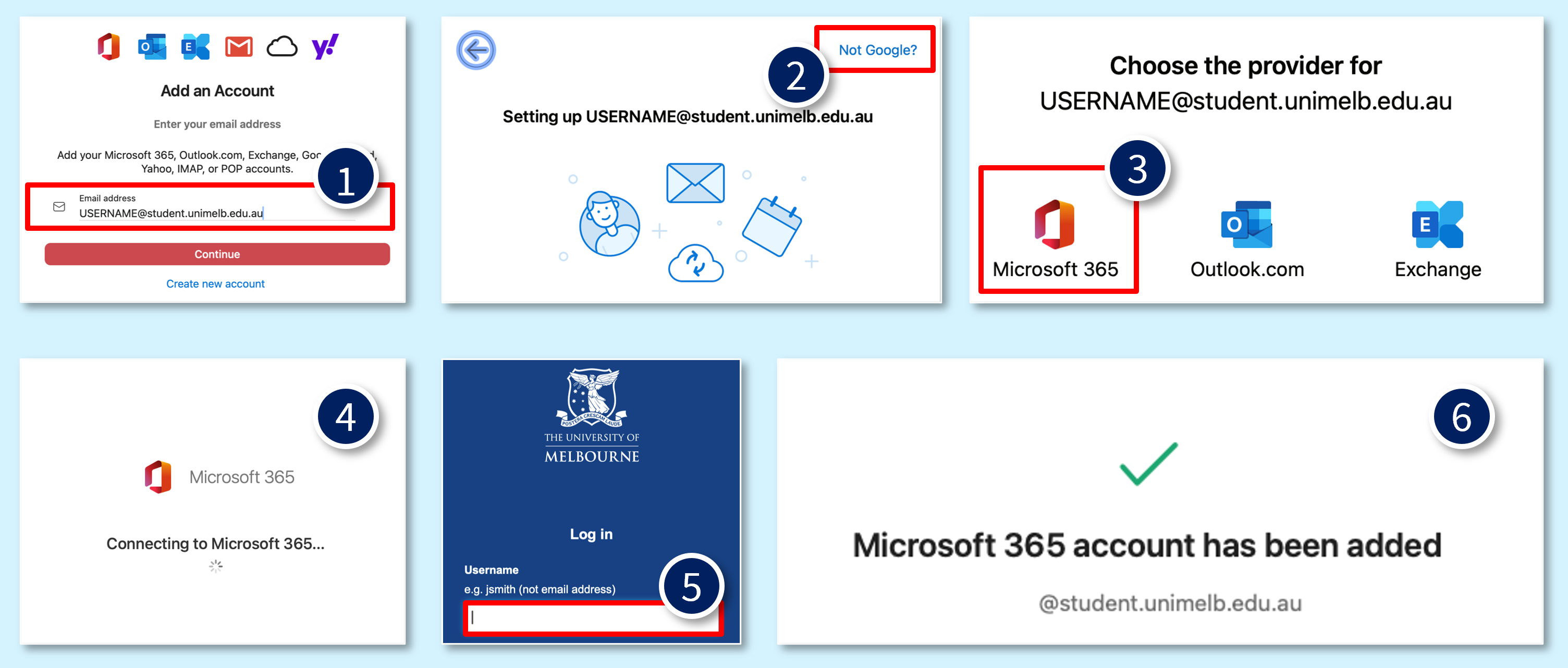
Troubleshooting Tip: If you have previously used your student Gmail account in the Outlook app on your Mac device, you need remove the account and quit Outlook (Command ⌘+Q) before proceeding with the steps below.
Refer to step 1 – 4 in the Add an email account to Outlook for Mac webpage, then follow the steps below:
- Enter your student email address.
- Click on Not Google? in the top right corner.
- Choose Microsoft 365 as the provider.
- Outlook will attempt to connect to Microsoft 365 and the SSO login screen will appear.
- Log in using your Student Username and Password, and follow the steps to verify your sign in using OKTA (or your preferred MFA).
- Your account will now be added to Outlook.
-
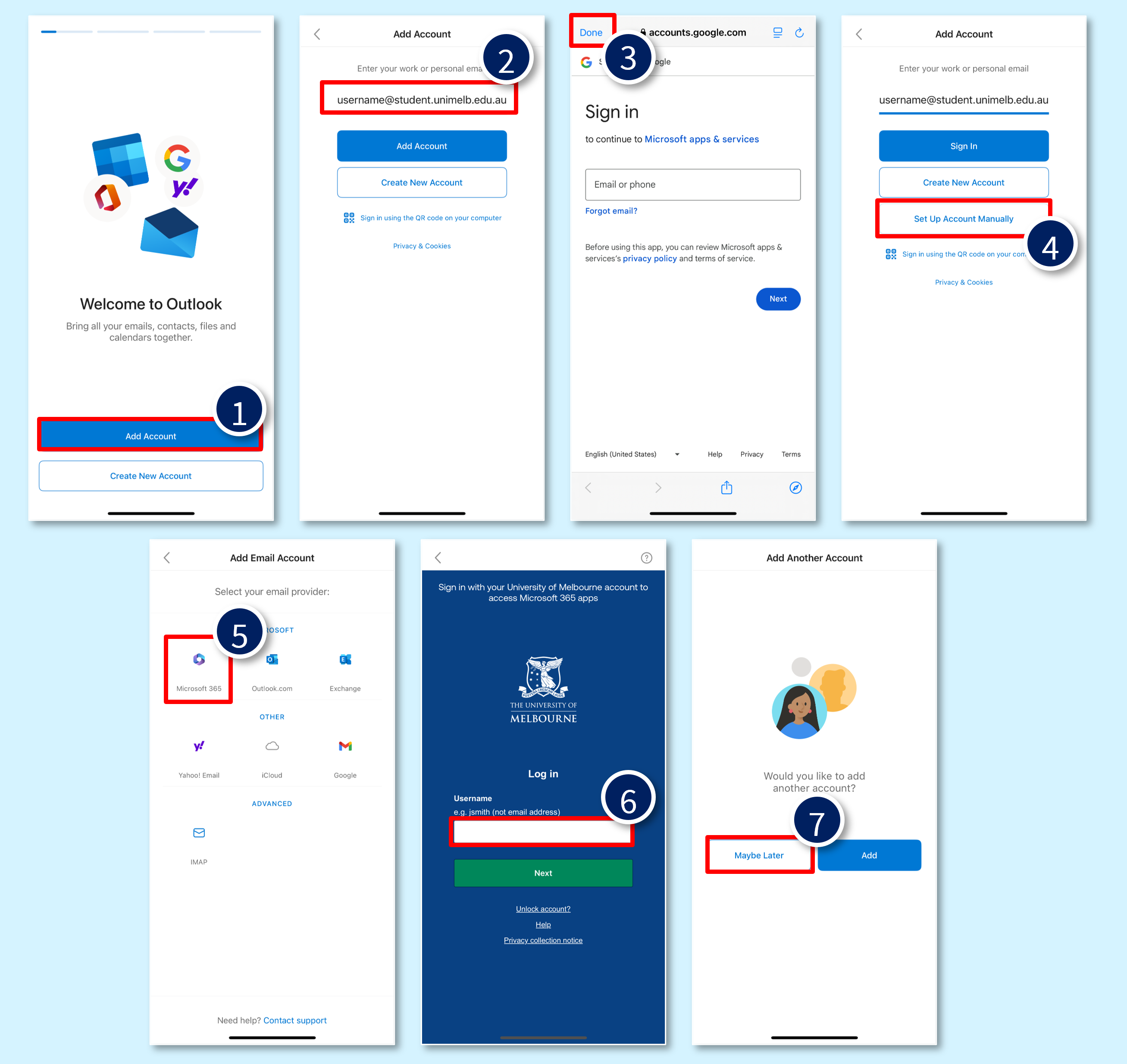
Troubleshooting Tip: If you have previously used your student Gmail account on your iOS/iPadOS device, you need remove the account and quit Outlook before proceeding with the steps below.
To set up your account manually, open the Outlook for iOS/ iPadOS on your device and follow the steps below:
- Click on Add Account.
- Enter your email address and click Add Account. Note: The QR code sign in option is not enabled for Student Outlook accounts.
- When the Google sign in screen appears (this may be an SSO screen), click Done in the top left to close the pop-up.
- Select Set up Account Manually.
- Select Microsoft 365 as the email provider.
- Sign in via the SSO pop-up that appears using your Username and Password.
- You may be asked to add another account. Complete the setup by selecting Maybe Later.
-
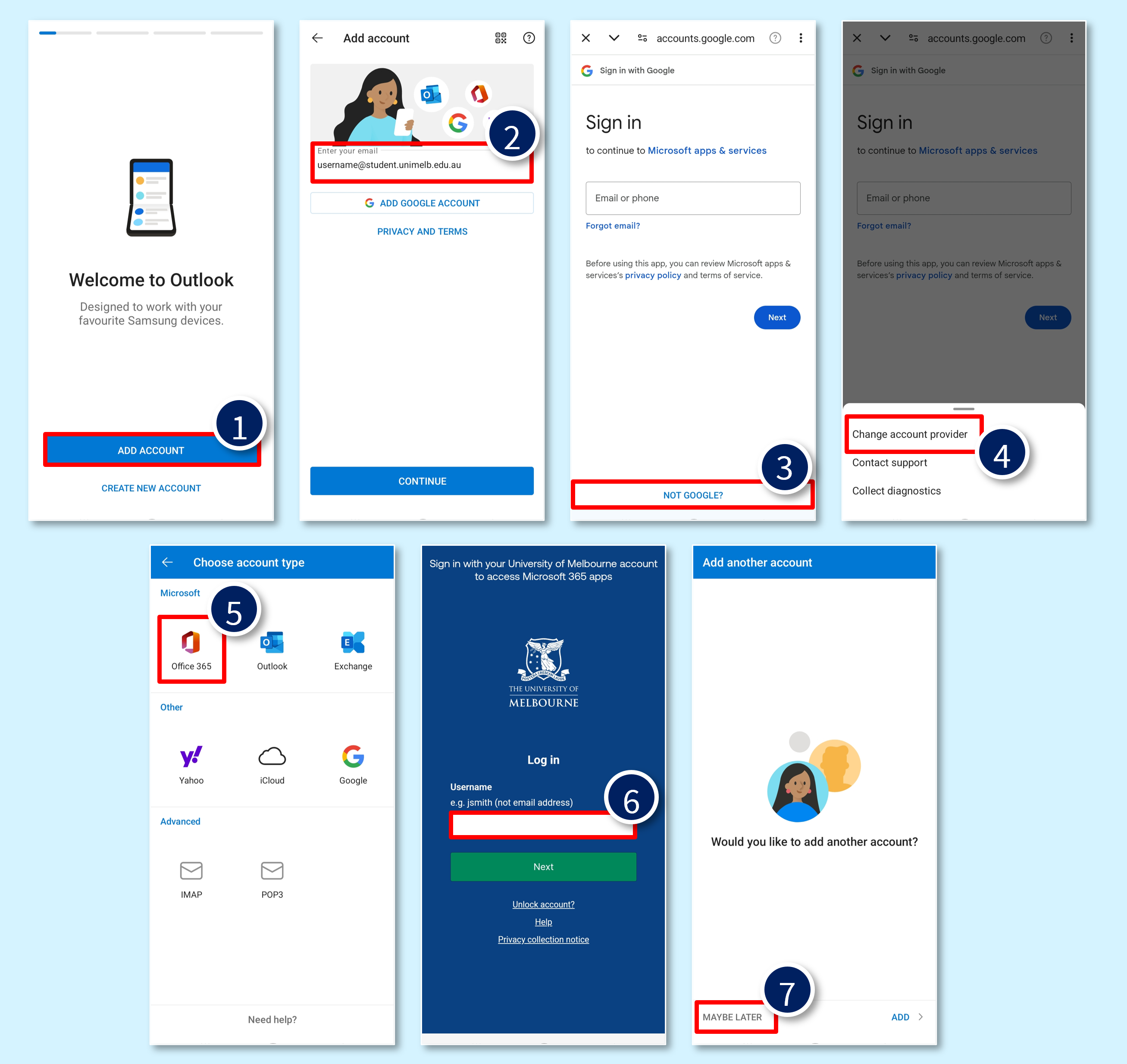
Troubleshooting Tip: If you have previously used your student Gmail account on your Android device, you need remove the account and quit Outlook before proceeding with the steps below.
To set up your account manually, open the Outlook for Android on your device and follow the steps below:
- Click on Add Account.
- Enter your email address and click Continue. Note: The QR code sign in option is not enabled for Student Outlook accounts.
- When the Google sign in screen appears (this may be an SSO screen), click NOT GOOGLE? at the bottom of the screen.
- Select Change account provider.
- Select Office 365 as the email provider.
- Sign in via the SSO pop-up that appears using your Username and Password.
- You may be asked to add another account. Complete the setup by selecting Maybe Later.
-
Troubleshooting Tip: If you have previously used your student Gmail account in the Outlook app on your Windows device, you need remove the account and quit Outlook before proceeding with the steps below.
For New Outlook UI, refer to step 1 – 3 in the Add an email account to Outlook for Windows webpage (under the New Outlook tab), then follow the steps below:
- Enter your student email address and click Continue.
- When the ‘Sync your Gmail account’ pop up appeares, click Cancel.
- Click Advanced Setup.
- Select Microsoft 365 as your email provider.
- Log in using your Student Username and Password, and follow the steps to verify your sign in using OKTA (or your preferred MFA).
- Your account will now be added to Outlook.

For Classic Outlook UI, refer to step 1 – 2 in the Add an email account to Outlook for Windows webpage (under the Classic Outlook tab), then follow the steps below:
- On the screen where you’re prompted for your email address, expand the Advanced options.
- Select Microsoft 365 as your email provider.
- Log in using your Student Username and Password, and follow the steps to verify your sign in using OKTA (or your preferred MFA).
- Your account will now be added to Outlook.

Other
-
The changes we are implementing only relate to University-supported Google Workspace applications when accessed via your ‘@student.unimelb.edu.au’ account. The list of these applications is listed on this page: https://studentit.unimelb.edu.au/software/google-workspace.
-
Please refer to the 'Access to student email account after graduation’ section on this page: https://ask.unimelb.edu.au/faq/5614/.
-
When all remaining student access to Google Workspace is removed in 2026, any automated Single Sign-Ons (SSO) previously linked to your University’s Google account will be decommissioned.
If you have used your University-issued account for single-sign-on to applications (for example, My eQuals platform), you will need to update your login details linked to those applications.
-
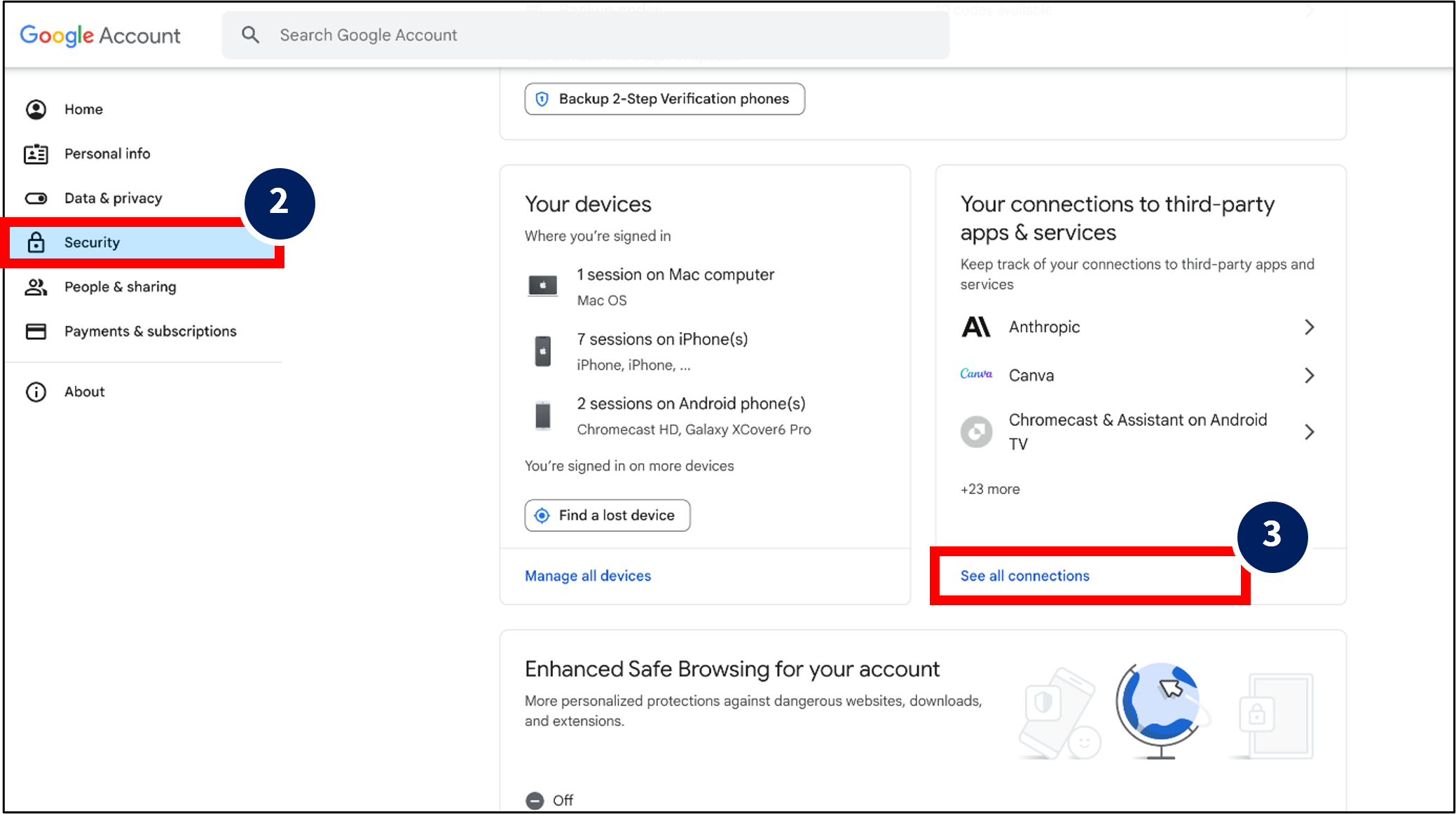
You can view the systems and applications you’ve signed into with your Google account and update your login details associated with these applications if needed.
Here are the tips to what to do:- Log into your student Google account by visiting: https://myaccount.google.com/.
- Go to the Security section.
- Under See all connections, you can view your connections to third-party apps and services.
- Visit these applications/ website individually and make any necessary updates to your login details.