Email alias
Email alias
In addition to your primary email address, you are provided a secondary email address, known as your alias email address. Your alias email address usually follows the format:
[first name].[family name]@student.unimelb.edu.au
Your first initial or preferred name can appear instead of your first name in your alias email address.
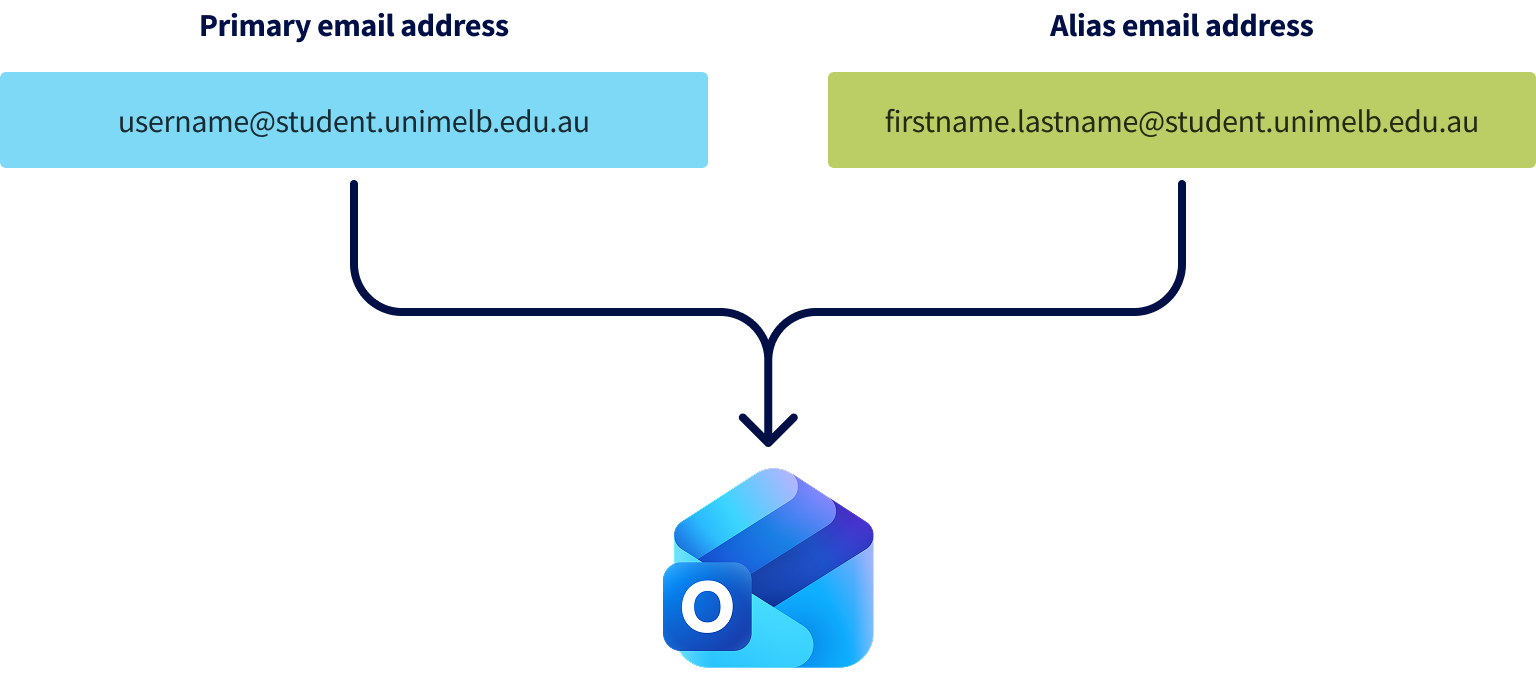
This email address is stored in the Student Admin system and University communication will likely be sent to this email address. This means you have one email inbox, which can send and receive emails from two different email addresses.
Alias email address benefits
- You can share this email address with others to keep your username private.
- You prefer the alias email address as the email address for others to see.
- You have changed your name or have a preferred name and have been provided a new alias.
Support & troubleshooting
-
To see what your student email alias is, visit your Personal Details page in my.unimelb and click Manage my details. Your email alias will be listed in the ‘Contacts’ section as your preferred email address. This is the same address stored in the University’s Student Admin system.
-
- Go to Outlook and Sign In to your account.
- Click the gear icon on the top right of your screen to show Settings.
- Click Mail on the left side of your screen.
- Select Compose.
- Under Addresses to send from, select the alias you would like to send emails from.
- Click Save at the bottom of the screen.
-
Any emails you send from your student account will automatically use your primary email address as the sender address.
Having an alias email address will not affect any emails which you send as a student unless you change your default address to your alias, in which case the sender address will change to that address.
After you add an alias email address to your account:
- Click the New Email button to start a new email or click the Reply link under an email you have received to reply to it.
- Click on the email address beside From.
- Select either your primary email address or your alias email address.
-
Your email alias works like a forwarding email address, so emails sent to your alias email address will appear in your Outlook inbox. All emails sent to your alias email address will automatically appear in your inbox.
It is up to you which email address you prefer to provide to others as a contact method.
-
You can request a new email alias for the following reasons:
- You have a had a legal name change (e.g. marriage, gender affirmation, etc.)
- You have a preferred first name
To request a new email alias:
- Update your legal name or preferred name using the steps on the Change to name and personal details page
- Submit a Student IT support form
Please note that you cannot choose your new alias email address. The new alias email address will follow the standard alias email address format.
Please note: Changing your email alias may risk wiping your Microsoft account data.