Outlook
Your University of Melbourne student account will be disabled following a 12-month grace period.
Therefore, you will only have this period to be able to download your Outlook data before your data is revoked from University systems.
Access to applications part of student Microsoft 365 licensing, including Outlook, will expire at the end of your 12-month grace period.
What you need to do
Export and import Outlook data (.pst)
Please ensure that you have sufficient storage space on your local device before exporting.
Windows
It is recommended to Export and Import your Outlook files, such as Emails, Contacts, and other folders, by following the steps below from Microsoft:
macOS
Microsoft has launched the Import function for .pst file in the New Outlook on macOS devices. However, students will still need to export .pst files using myUniApps for now.
Export
- Log into the browser version of myUniApps
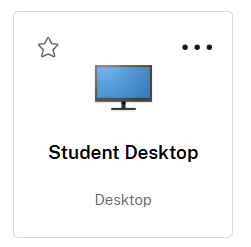
- Go to "Student Desktop"
- Click on the Windows logo on the bottom left. Find and open Outlook

- Log into your student email
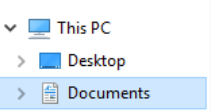
- Export the .pst file by following the steps here. Ensure the file is downloaded to the "Documents" folder within the 'This PC' directory
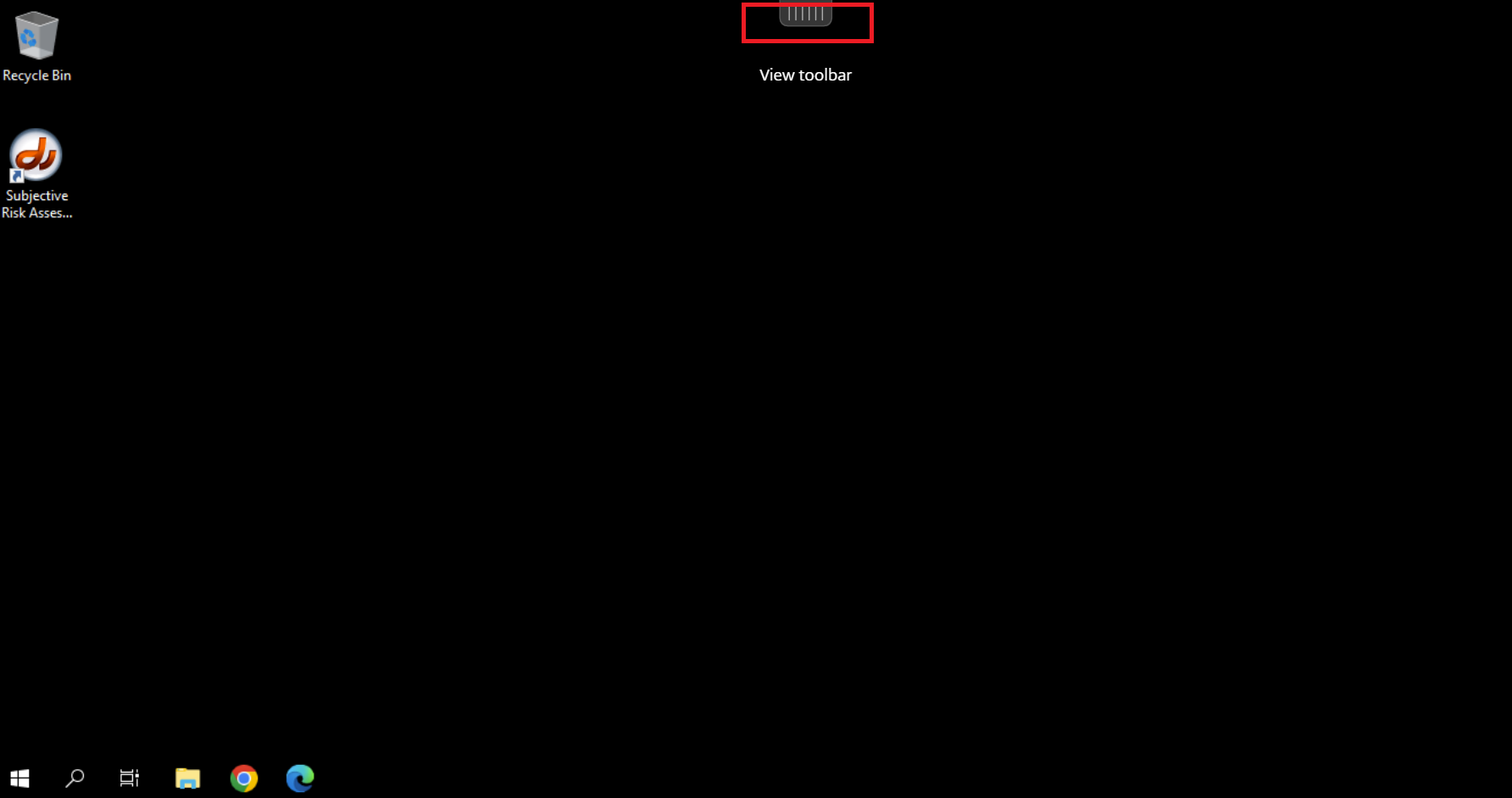
- Once the file has downloaded, please click on the "View toolbar" button on top of the desktop screen (marked in the screenshot)
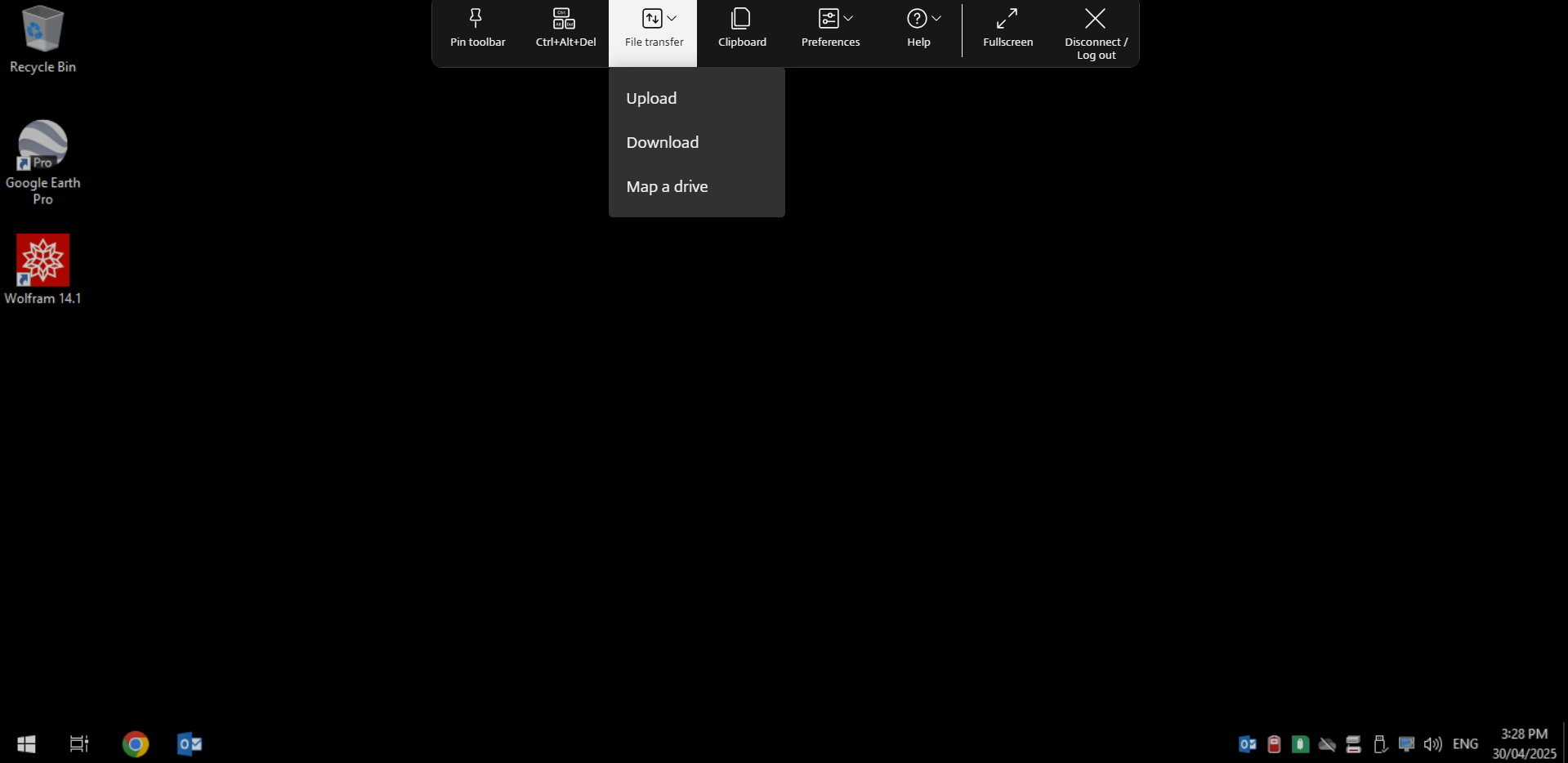
- Click on "File transfer" and "Download"
- Go to "Documents" and double-click on the .pst file. It should start downloading immediately.
- Once downloaded on your local device, you can close myUniApps on your browser
Import
- Open the New Outlook app using your MacOS device
- On the Outlook for Mac File menu on the top left, click Import
- Select Outlook for Windows archive file (.pst), then click Continue
- Locate the .pst file, then click Import
- When the file been successfully imported, click Finish
Prev: Initial Offboarding Next: Export OneDrive and SharePoint