Set up email clients
Find out more about accessing and setting up your student email
Set up email clients
You can sign into various email clients to access your student email efficiently and on-the-go. The recommended client is Microsoft Outlook, which is available on macOS, Windows, iOS/iPadOS and Android.
Setup Tip: If you have previously used your student Gmail account in the Outlook app on your device, you need remove the account and quit Outlook before proceeding with the steps below.
Microsoft Outlook
Select your operating system and follow the steps to set up Outlook.
-
If you are setting up Outlook for Mac for the first time, you may need to start from Step 4.
- In Outlook for Mac, select the Outlook menu and select Settings.
- Under Quick Settings, select Accounts.
- Under Email Accounts, click on + Add Account.
- Enter your primary student email address
[username]@student.unimelb.edu.auand click Continue.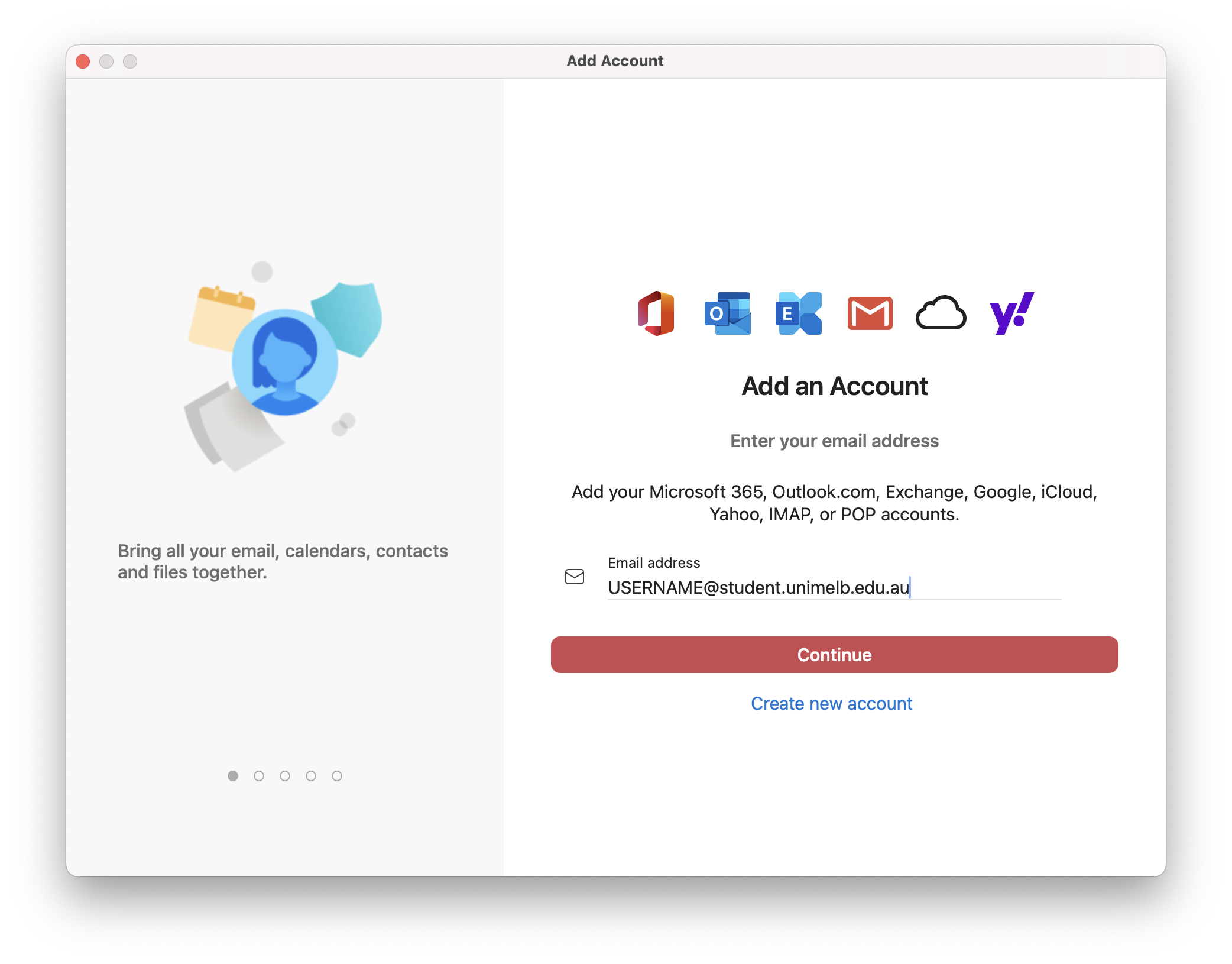
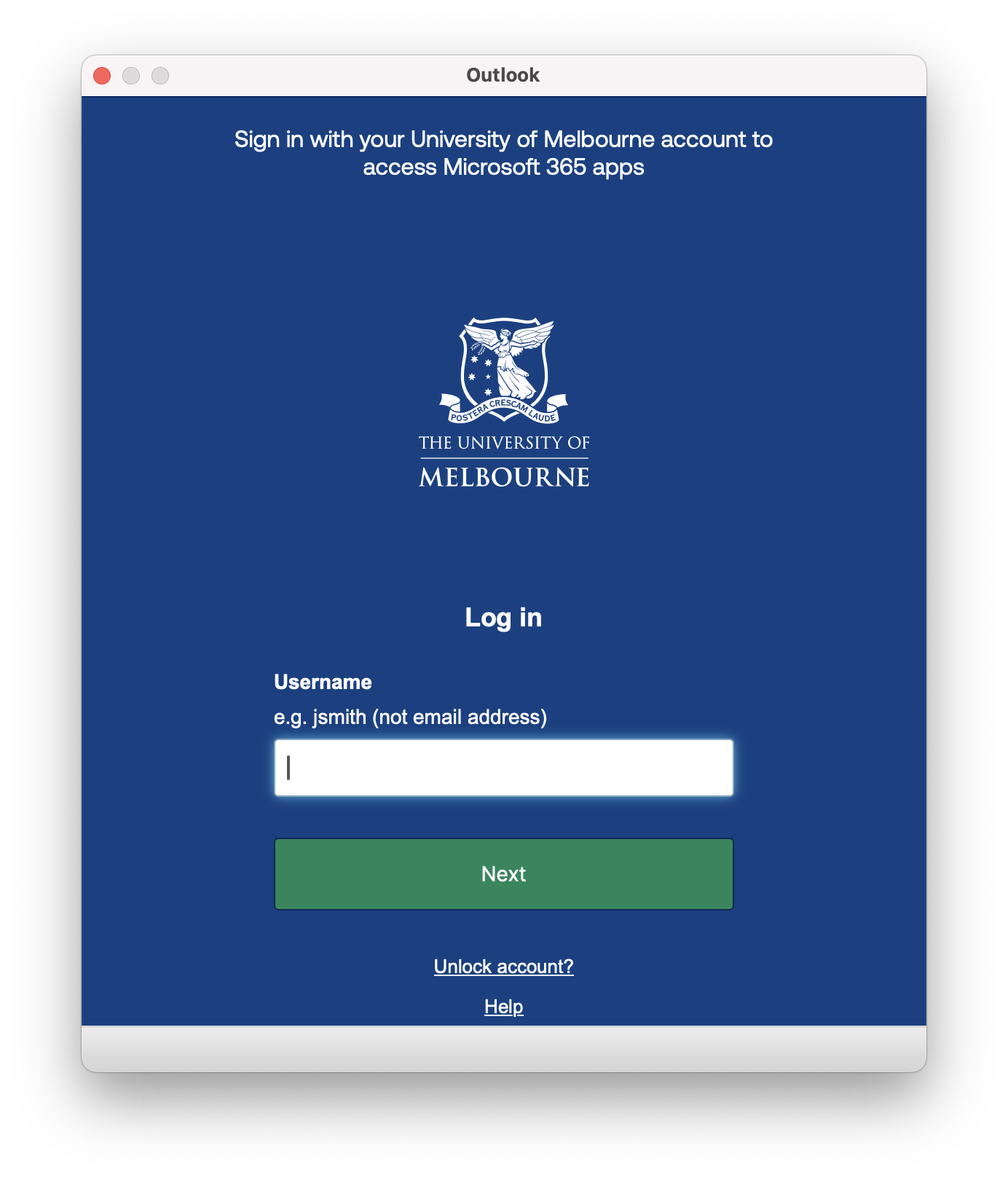
- Outlook will attempt to connect to Microsoft 365, and the SSO login screen will appear.
- Log in using your student Username and Password and verify your sign in using Okta Verify (or your preferred MFA method).
- Your student email account will be added to Outlook.
-
If you are setting up Outlook for Windows for the first time, you may need to start from Step 4.
- On the View tab, select View settings, or from the File tab, select Account info.
- Select Accounts > Your accounts.
- Under Email accounts, select Add Account.
- Enter your primary student email address
[username]@student.unimelb.edu.auand click Continue.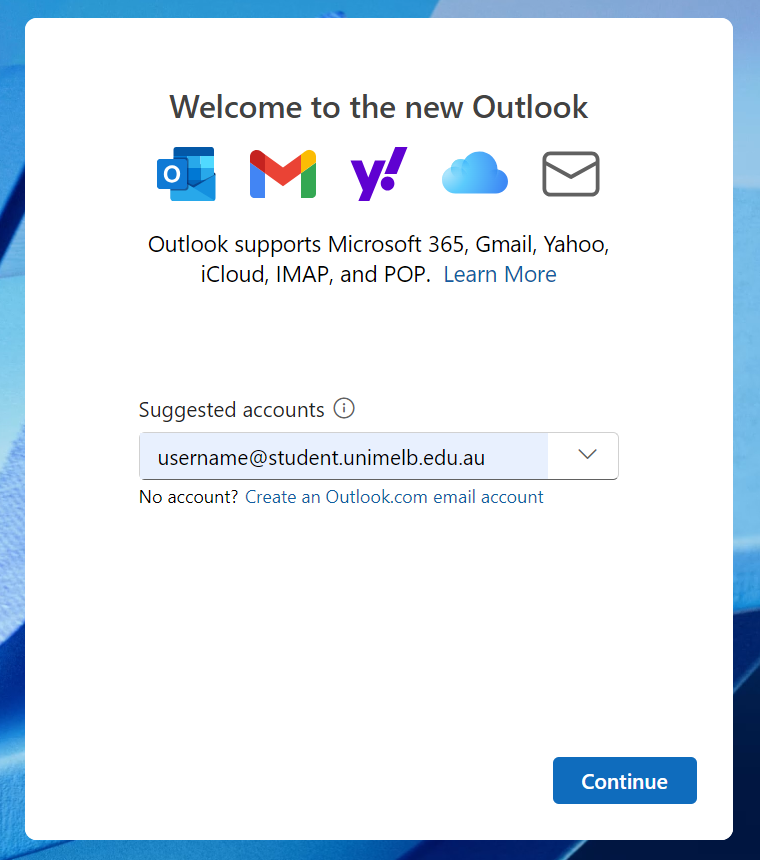
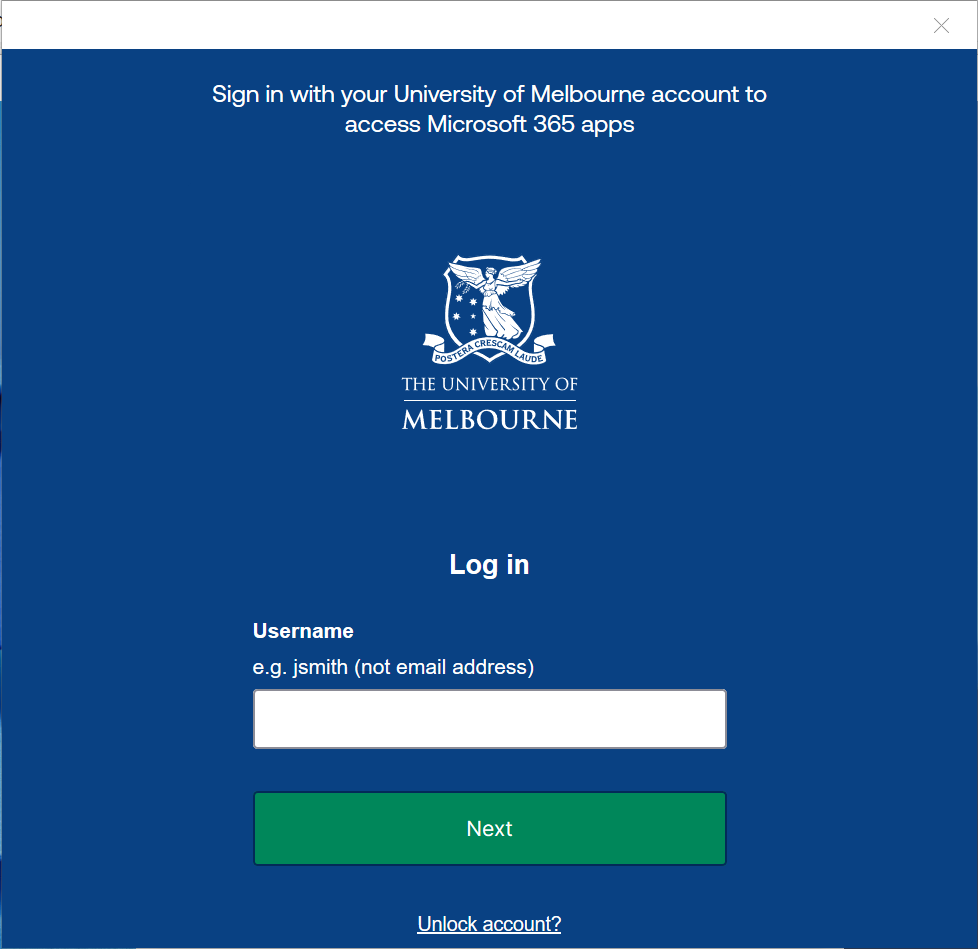
- Outlook will attempt to connect to Microsoft 365, and the SSO login screen will appear.
- Log in using your student Username and Password and verify your sign in using Okta Verify (or your preferred MFA method).
- Your student email account will be added to Outlook.
-
If you are setting up Outlook for iOS/iPadOS for the first time, you may need to start from Step 4.
- Open the Outlook for iOS app on your iOS device.
- At the top of the app, tap Inbox, and then select Settings ⚙︎.
- Under General, select Accounts.
- Select Add Account.
- Select Email Account. This option may not appear if you are setting up Outlook for the first time.
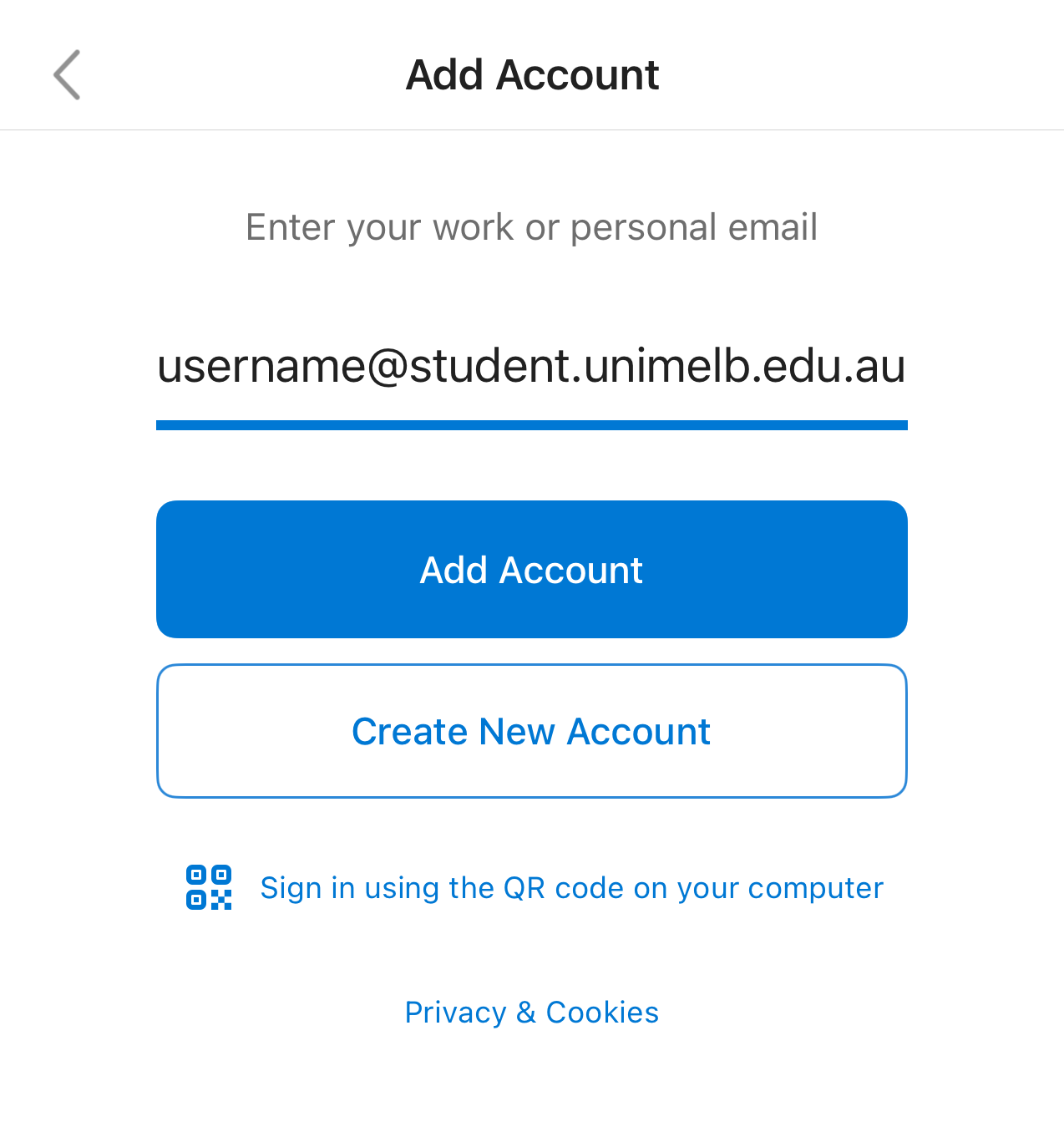
- Enter your primary student email address
[username]@student.unimelb.edu.auand tap Add Account.The QR code sign in option is NOT enabled for Student Outlook accounts.
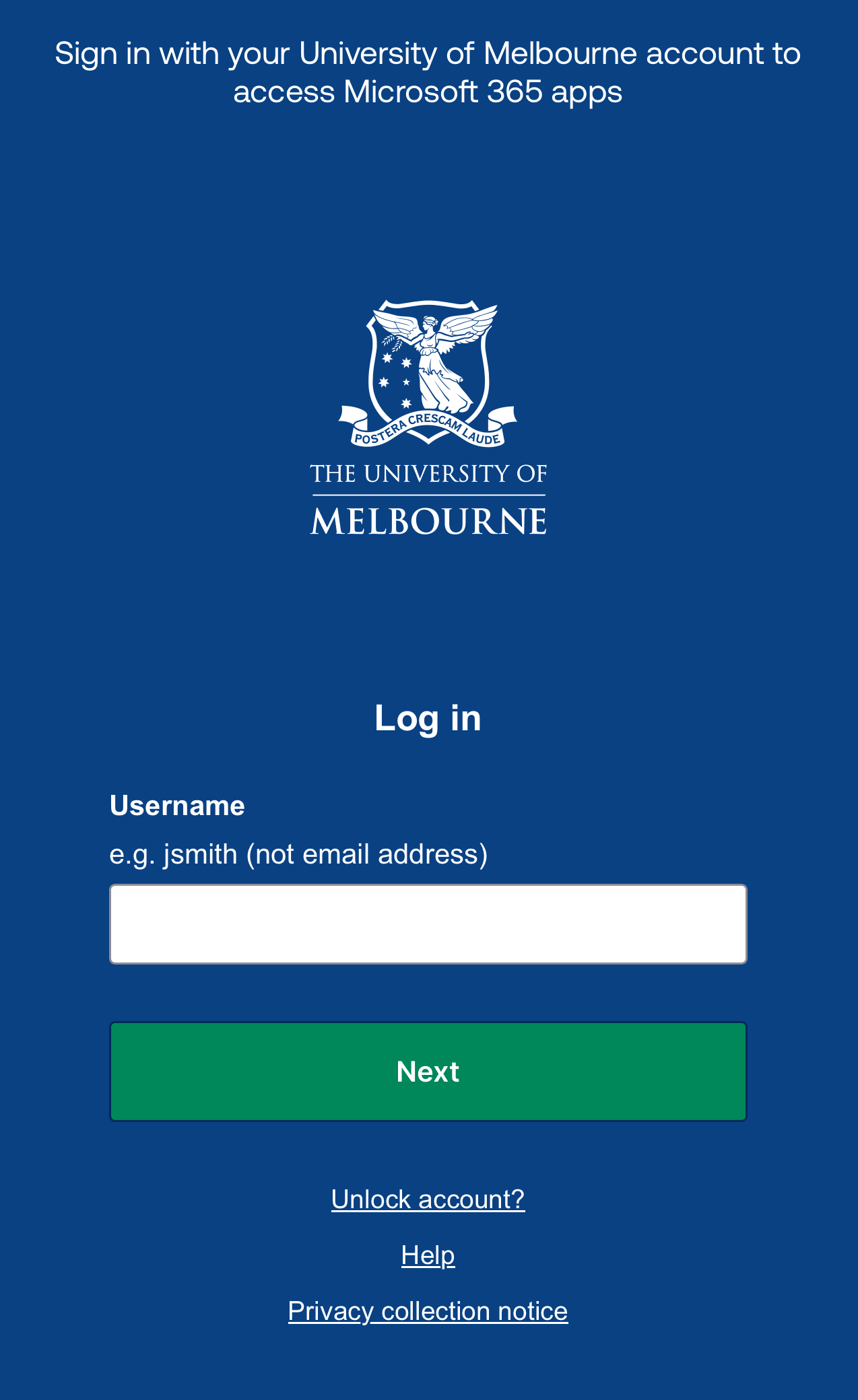
- The SSO login screen will appear. Log in using your student Username and Password and verify your sign in using Okta Verify (or your preferred MFA method).
- Once set up is complete, you may be asked to add another account. Close this by selecting Maybe Later.
- Your student email account will be added to Outlook.
-
If you are setting up Outlook for Android for the first time, you may need to start from Step 3.
- Open the Outlook for Android app on your Android device.
- At the top of the app, tap Inbox, and then select Settings ⚙︎.
- Select Add Account.
- Select Add an email account.
- Enter your primary student email address
[username]@student.unimelb.edu.auand tap Continue.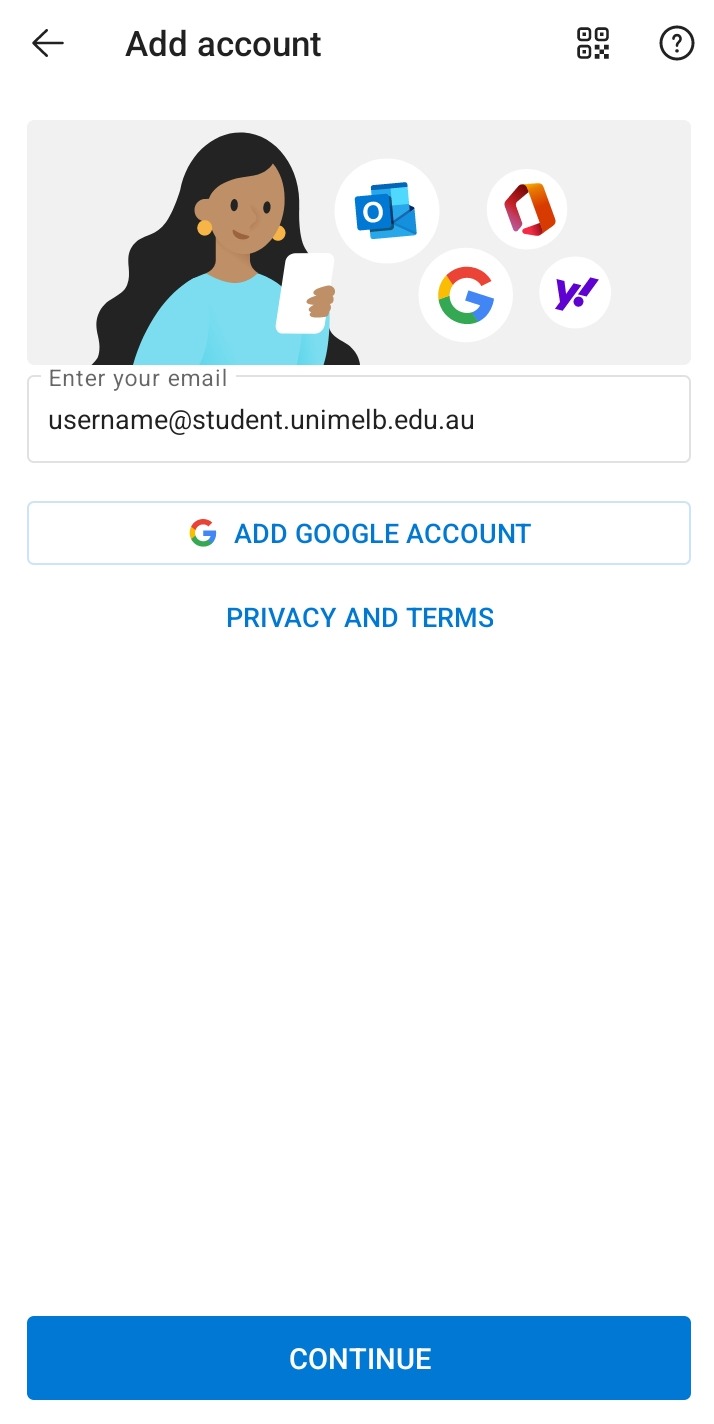
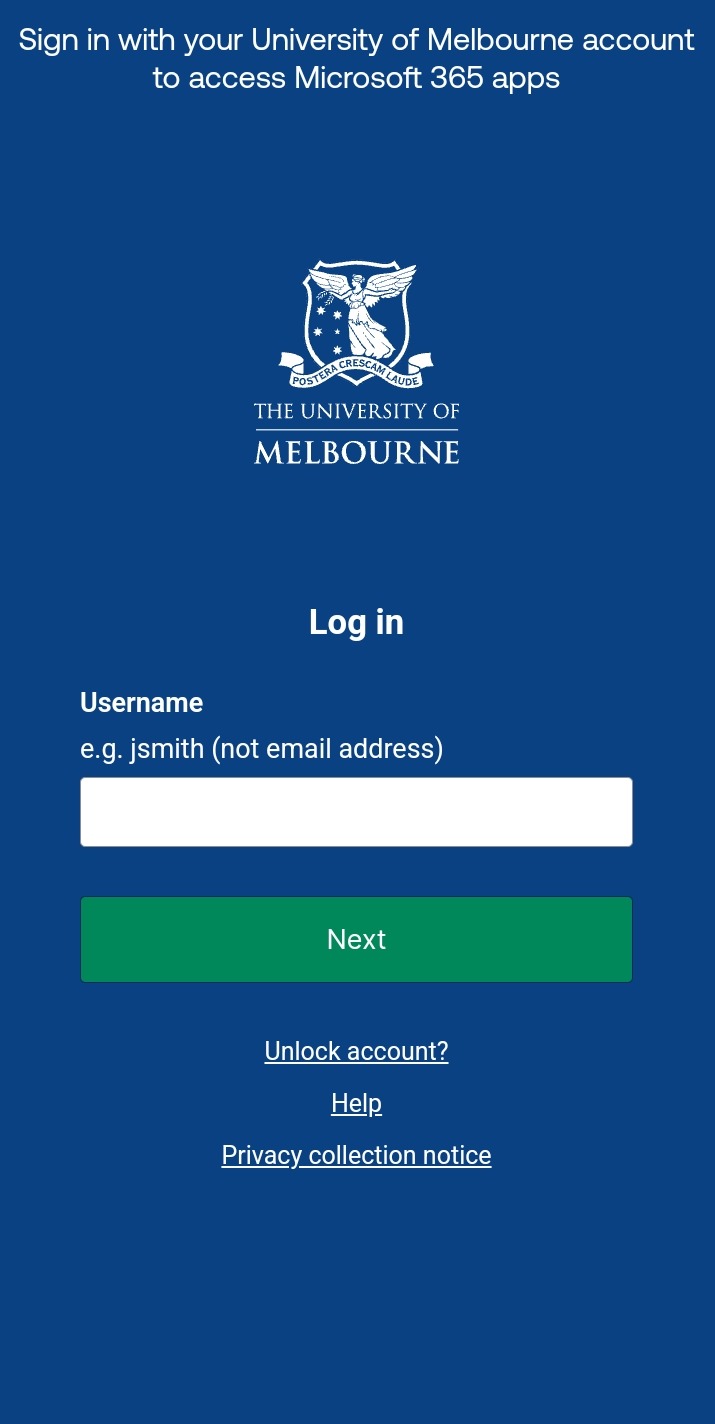
- The SSO login screen will appear. Log in using your student Username and Password and verify your sign in using Okta Verify (or your preferred MFA method).
- Once set up is complete, you may be asked to add another account. Close this by selecting Maybe Later.
- Your student email account will be added to Outlook.
Other email clients
-
- iOS/iPadOS Mail: Set up an Outlook account on the iOS Mail app
- Mac Mail App: Set up Exchange account access using Mac OS X 10.10 or later
It is not possible to set up your student email in the Gmail app for Apple devices.
-
Support & troubleshooting
-
Error message
Troubleshooting steps
“Oops, something went wrong. We were unable to complete your authentication flow.”
- Uninstall Microsoft Authenticator from your device.
- Attempt to set up your student email in your email client again.
“Something went wrong. [5nlhg]”
- Uninstall Microsoft Authenticator from your device.
- Attempt to set up your student email in your email client again.
"Something went wrong. [657rx]" This issue is usually resolved by disconnecting your student account from your Windows device.
You can do this by following the steps below:
- Go to Settings.
- Click on Accounts.
- Click on Access work or school.
- Select your student account, and click Disconnect.
- Restart your device.
- Attempt to set up your student email in your Microsoft Outlook again.
If the error you are seeing is not listed in the table above or you are still unable to set up your student email in your preferred email client after following the steps above, get help by contacting Student IT.
-
Yes, a limited number of third-party email clients have been approved for use.
These include Thunderbird, Thunderbird Android, and SparkMail.
Please be aware that Student IT does not support these applications. If you are having issues using the applications after setting up your student email, please contact the third-party application’s support team directly.