UniWireless
UniWireless is the main wireless network for University of Melbourne students and staff. Learn more about how to connect to the network and self-troubleshoot issues below.
An updated version of the University’s Wireless Terms of Use is now available and can be accessed through the Wireless Access Portal. Review and accept the Wireless Terms of Use before connecting to UniWireless an/or Eduroam.
Is your device's operating system up to date? Users connecting to the UoM network will need to adhere to new cybersecurity requirements. Outdated device operating systems will no longer be supported, and will be unable to connect to the UoM network. More information here
University students
Connect to UniWireless
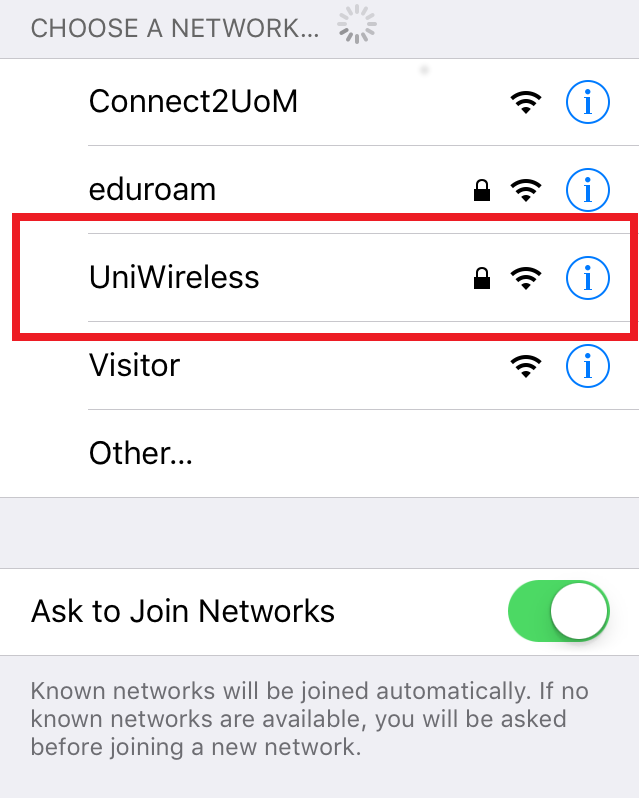
- Select UniWireless on your device from the available wireless networks.
- Input your username and password when prompted.
- If prompted, press "Trust" to verify the certificate.
- You can now access the internet using the UniWireless network.
Coverage
UniWireless is available everywhere on-campus.
Basic Troubleshooting
If you are having trouble connecting to the Wi-Fi on campus:
- Try forgetting the wireless network and then try to reconnect.
- Check your device operating system is up to date and meets the minimum network requirements. More information can be found here
Further Device Troubleshooting
- Click Start/Windows button
- Type Command Prompt
- Right click on the application, and click Run as Administrator
- Type in the following lines, clicking enter after each one
- netsh winsock reset
- netsh int ip reset
- ipconfig /release
- ipconfig /renew
- ipconfig /flushdns
- Open Spotlight search (magnifying glass in top right corner of screen)
- Search for System Preferences
- Click on Language and Region
- Ensure the correct date, time and region settings are in place
- In Spotlight search, enter Keychain Access
- Click login then Certificates (left menu bar)
- Delete any non-Apple certificates
- In Spotlight search, enter Profiles
- Delete any profiles that appear
- Retry connecting to network
- If you are still unable to connect, it is possibly a device lockout. Wait 30 minutes without connecting to UniWireless or eduroam, then try reconnecting
- Navigate to Apps.
- Locate and tap Settings.
- Tap Wi-Fi.
- Tap UniWireless.
- Ensure that EAP method is set to PEAP.
- Set the Phase 2 authentication to MSCHAPV2.
- Select the right option below depending on your Android version and fields available
- For recent Android versions:
- Select Use System Certificates from CA Certificate option
- Select Do Not Verify from Online Certificate Status option
- Enter unimelb.edu.au under Domain option
- For older Android versions:
- Select Do Not Validate Certificate
- Enter your username in the Identity field.
- Leave Anonymous Identity empty.
- Enter your password in the Password field.
- Set MAC Address Type to Use Phone MAC/Device MAC.
- Tap Connect.
- Open Settings > General > Profiles (if not shown, connect to network as per normal)
- Delete any network profiles
- Retry connecting to network
IT and wireless - Terms of use
All University staff, students and authorised users of University IT infrastructure should familiarise themselves with the University’s IT and wireless terms of use.
The terms apply to the use of University computer systems (including all related equipment), networks, network devices (including the wired and wireless network and IP telephones) and electronic services and resources. They refer to:
- The Information Security Policy (MPF1270);
- The Provision and Acceptable Use of IT Policy (MPF1314); and
- The Privacy Policy (MPF1104).
You can view the University’s IT and wireless terms of use and related FAQs on the IT and wireless – Terms of use page.